
Case #2: Can customer account login on your non-Microsoft e-commerce website grant you access to D365 ERP data?
In this series of blog posts I’ll share insights, strategies, and proven solutions to address the most common roadblocks and challenges in connecting non-Microsoft e-commerce to D365 ERP.
Today’s Case
Q&A
Question raised by the customer: is there a way to directly authenticate our B2B users to access D365 ERP data, just by using their existing login to the e-commerce website?
Short answer: YES! the D365 CSU APIs shipped with D365 ERP support this scenario out-of-the-box. Read on to see how..
External user login to ERP data
e-commerce frontends often have out-of-the-box user account management. In a B2B context, these users are also linked to an organization. Ideally for a seamless user experience, customer log-in would allow your E-SHOP to authenticate directly against D365 ERP data. It would even be better if the ERP data is scoped to the authenticated customer - In other words: that the single customer login in the e-commerce frontend triggers the ERP data to be filtered and narrowed-down to products the customer is allowed to see, with specific pricing reflecting the terms and agreements with the customer.
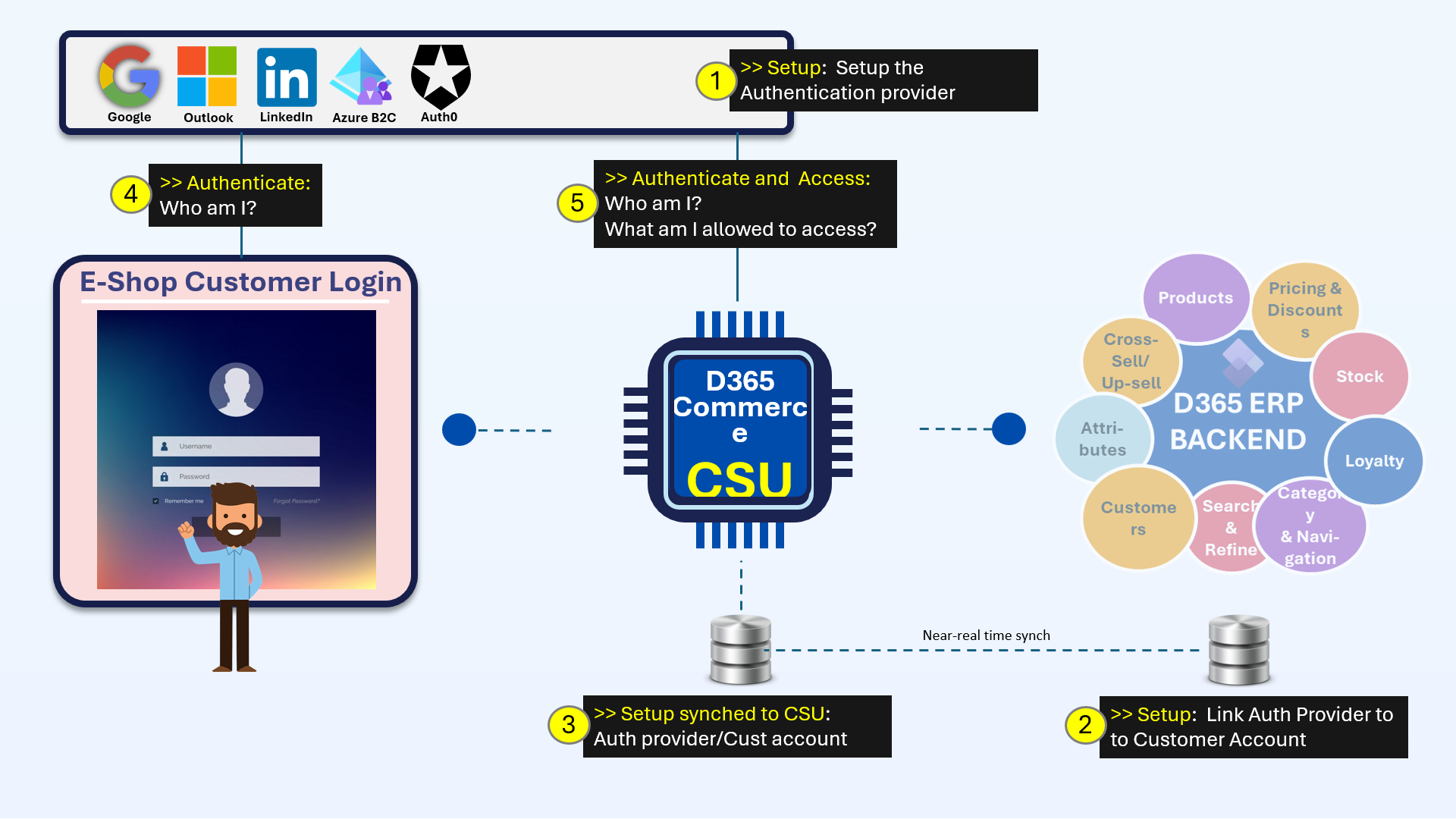
This is all possible out-of-the-box as shown in the diagram below. The trick is to link the authentication provider’s unique identity for a customer to a user and organization in D365 (in B2B world) or customer account in D365 (in B2C world). This setup is then synched to the D365 Commerce CSU as per standard batch jobs, so the CSU is ready to grant customer users access to ERP.
Now, when the user logs into the authentication provider embedded in an E-SHOP page, the E-SHOP will receive a token which contains the unique identity of the customer user which was mapped in ERP and now available in CSU. This allows the CSU to re-validate the token, look up the customer user and organization (B2B) or Customer account (B2C) and grant access to local data in CSU or directly into ERP via a real time connection from CSU. We’ll take a deeper dive into these 5 steps below. We’ll take the example of a user who logs into a non-Microsoft e-commerce site with Google account. Please note that this will also work with Azure B2C as well as any Open ID CONNECT compatible identity provider such as LinkedIn, Microsoft hotmail, Facebook, Auth0 etc.
Step 1: Setup the Authentication provider [in our case: Google]
Note: prerequisites for below are to have login details of an existing Google account available and have deployed a CSU in case of a sandbox. In case of a DEV-box, the built-in Retail Server will act as CSU.
1A: Setup Google Application to authenticate against D365:
- Open https://console.cloud.google.com/ and login with your google account.
- Navigate to APIs and Services
- Go to the Credentials page
- Click “Create Credentials” and select “OAuth 2.0 Client ID”
- Configure the consent screen if you haven’t done so already
- Set the application type to “Web application”
- Add https://oauth.pstmn.io/v1/callback to the Authorized redirect URIs
- Save and note down the Client ID and Client Secret
1B: retrieve unique identity token representing your customer user
- Open a tool to construct and send API requests, such as Postman
- Construct a new API request with URL = https://accounts.google.com/o/oauth2/v2/auth
- The rest of the URL will be constructed by the Query Params you’ll fill in (see picture below)
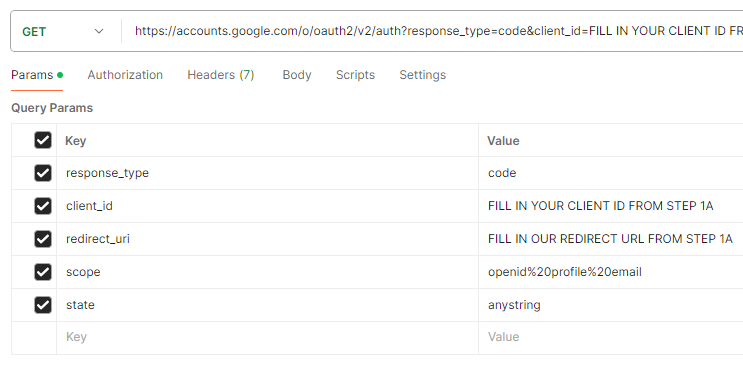
- Do not fire the request from within Postman or other tool you’re using, but copy the full URL into a web browser
- Login with your Google account
- Copy the code after “code=” and before “&scope”
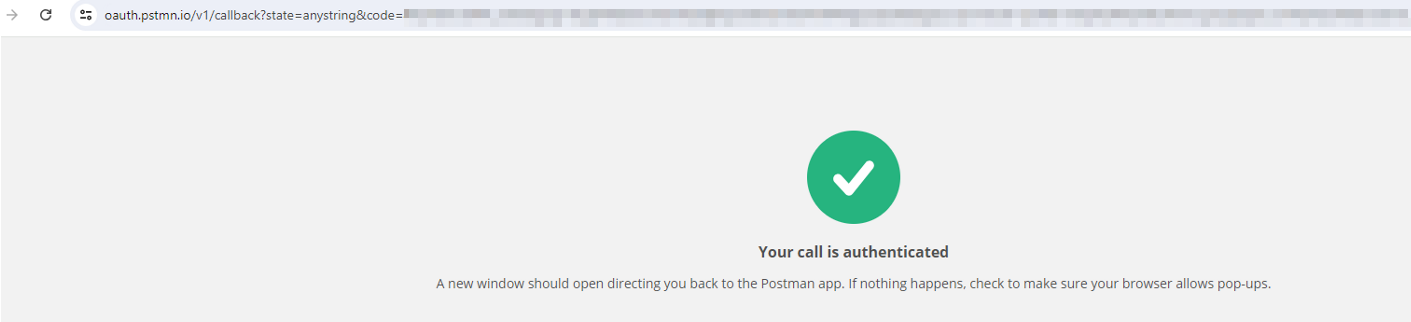
- URI decode this code via https://www.urldecoder.org/
- Construct another request in Postman to get an ID token with the Authorization code: POST https://oauth2.googleapis.com/token;
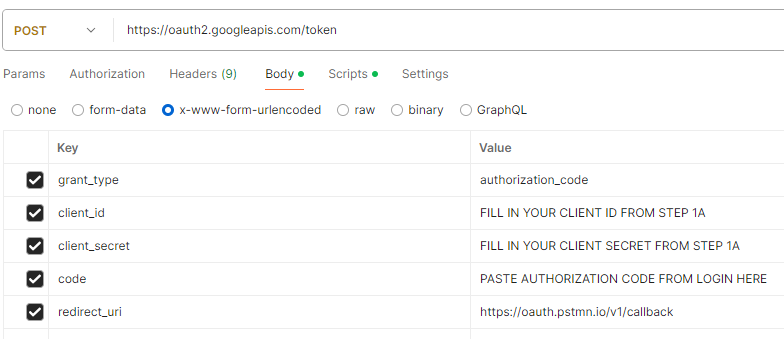
- This will retrieve an id_token - Copy it as indicated in the picture:
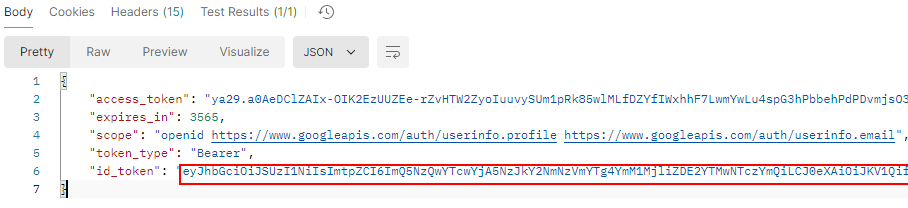
- Navigate to jwt.io and paste the id_token
- Note down the values for Iss, Aud and Sub - You’ll need them in step 2
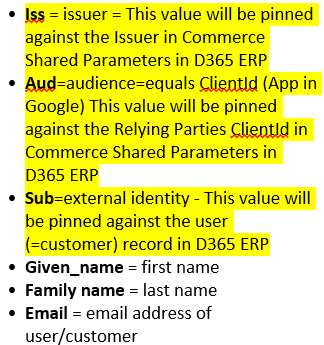
- Explanation:
Step 2: Setup D365 ERP
2A - Setup identity provider
- Navigate to Commerce Shared Parameters > Identity providers in D365 ERP
- Create a new Issuer record: Type = Open ID Connect - Fill in the value for Iss which you noted down in step 1B - Name can be anything
- Create a new relying parties record underneath the new Issuer record**:** paste ClientID from step 1A and set Type = Public and UserType = Customer
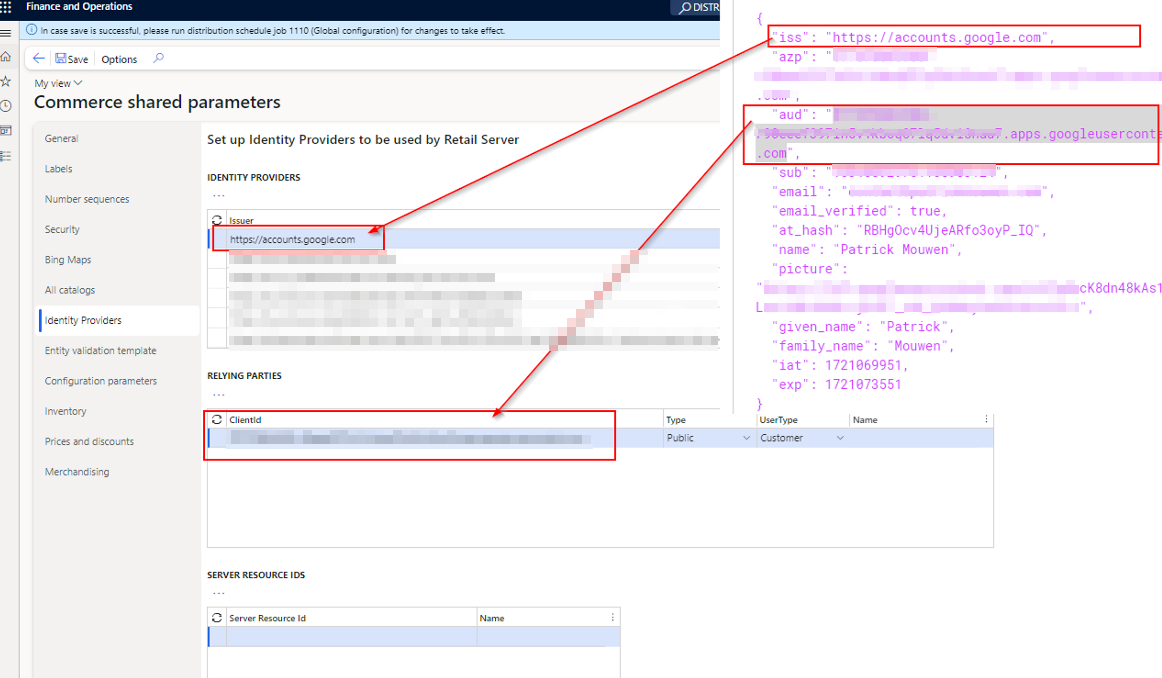
2B - Setup for B2C and B2B
- Create a new person type of customer account representing the user
- Ensure the E-mail address of the customer account matches your Google e-mail address
2C - Setup a B2B customer hierarchy (only required for B2B)
- Navigate to the Customer hierarchies form in D365 ERP
- Create a new hierarchy
- Ensure to configure the customer account from step 2B as a user for the organization and also ensure to list the desired online channel(s) the customer user should have access to
2D - Link Identity provider’s identity to a Customer user
- Follow the steps in this blog post by Febin Chiramel to create a new record in the RETAILEXTERNALIDTOCUSTOMERMAP table with Excel.
- This record will link the Issuer’s identity to the customer account created in step 2B. Use the Sub value you noted in step 1B for this.
Step 3: Synch the ERP setup to the CSU
Open the Distribution schedule form in D365 and run jobs 1010 and 1110 to synch the new customer and related identity provider setup to the CSU
Step 4: Login to your Google account on the E-commerce platform
- By now, your frontend development partner should have seamlessly made the Google login window available via a web page in your E-commerce platform, so the manual work in step 1B should no longer be necessary.
Step 5: Retrieve D365 ERP Data in real time and scoped to the authenticated customer!
- Once the id_token is retrieved by the non-Microsoft e-commerce solution, the token can be used for any subsequent interaction between the frontend and D365 CSU. This is done by putting the token into Authorization header of any API request to the CSU:
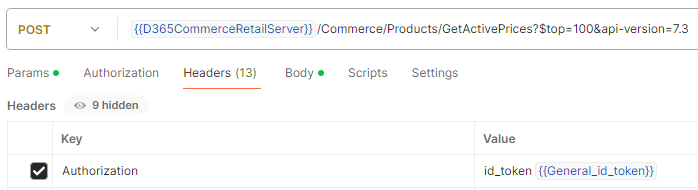
- The CSU will now re-validate the token by the local identity provider details in the CSU database which you set up in ERP in step 2.
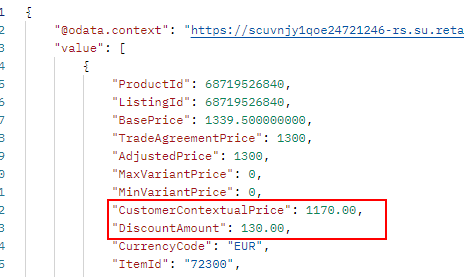
- Once the token is validated successfully, D365 will lookup the customer account by the user identity and will contextualize any request against the customer who logged in (!). So for example, a GetActivePrices request will retrieve pricing details (such affiliation pricing) based on the context of the customer who logged in 👍👍👍!
All too complex?
This may seem a bit overwhelming or too complex to some of you. That’s why I founded my company 365CONNECT in 2022. Within this company we packaged all our knowledge and experience into a standard Product and Setup offering which makes it very easy to onboard and start using the D365 CSU. See About the Author below.
Licensing and Pricing considerations
A most-heard complaint in the D365 ecosystem in using D365 CSU for connecting non-Microsoft e-commerce to D365 is about the pricing of the CSU. But what if you take into the equasion that your say 800 B2B customer users actually all need access to your ERP data, as this data is directly accessible in the e-commerce frontend? A classical user licensing model would not work here. That’s why Microsoft put up a CSU licensing model based on transactional volume and average order volume (AOV). So if your transactional volume and AOV remain constant while your Customer user base grows to 1200 users, you will not pay anything more. I think that’s quite fair. We’ll further zoom into licensing and pricing in an upcoming blog post.
About the Author
I’ve been integrating non-Microsoft e-commerce solutions with D365 ERP and CRM since the early days of AX for Retail in 2009. Already back in 2015, I connected an E-commerce platform to D365 ERP by a predecessor of the current D365 Commerce CSU for the first time.
Get in touch via patrickmouwen.com/contact if you need help in implementing:
- D365 Commerce on top of ERP including D365 Store Commerce App and D365 e-commerce
- Customizing/Extending D365 Commerce, CSU, Store Commerce App and e-commerce
- B2C and B2B Headless Commerce/D365 ERP integrations via Commerce CSU
- B2C and B2B Commerce Platform/D365 ERP integrations via Commerce CSU
- Customer Service operation based on D365 ERP and D365 CE data utilizing Commerce CSU
- Social Commerce/D365 ERP integrations via Commerce CSU
- Professional App (React.JS)/D365 ERP integrations utilizing Commerce CSU
- POS/ERP integration